

Several shapes in one file
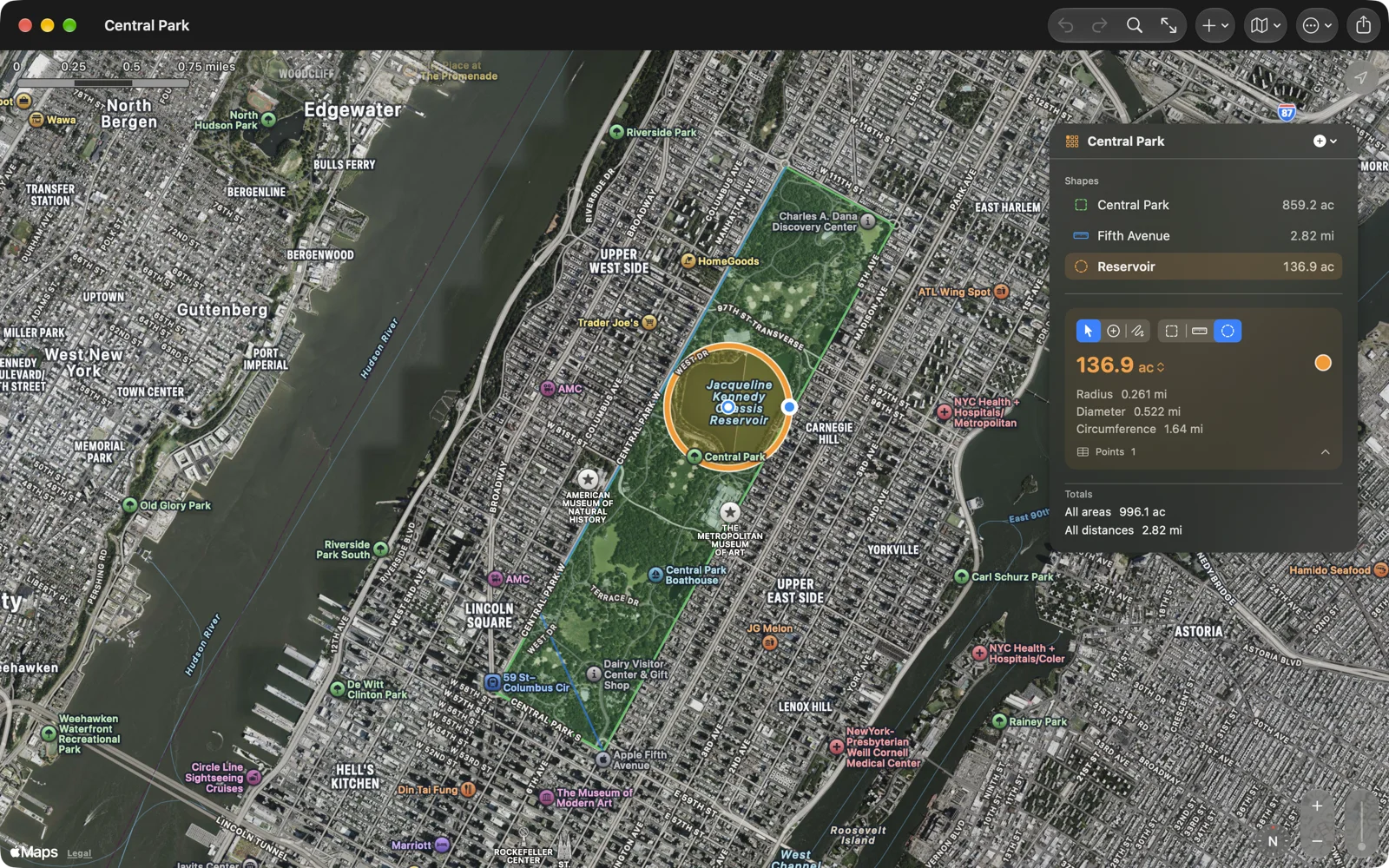
The list. On iPad, Mac and Vision Pro the panel lists every shape under Shapes, with its name and number. Click one to select it; double-click to fit it on the map. Right-click (or touch and hold) for Show on Map, Rename…, Color and Delete.
On iPhone, tap the shape’s name on the card for every shape with its number, New Area, New Distance, New Circle, Rename… and Delete. With nothing selected, the card shows a chip per shape; tap one to select and fit it.
On the map, tap inside an area or circle, or on a distance’s line, to select it. Only the selected shape shows its points.
Names start as Area 1, Distance 1 and so on; rename from the shapes menu, the More menu, or Measure › Rename Shape….
Colours. The dot beside the number is the colour menu: Default, Red, Orange, Yellow, Green, Blue, Purple, Indigo or Brown. Default uses Settings › Appearance. Areas are filled with their colour, see-through.
Deleting. Delete the selected shape from the shapes menu, the More menu, or Edit › Delete Shape (⌘⌫). Delete All… asks first, and can be undone.