

The points table
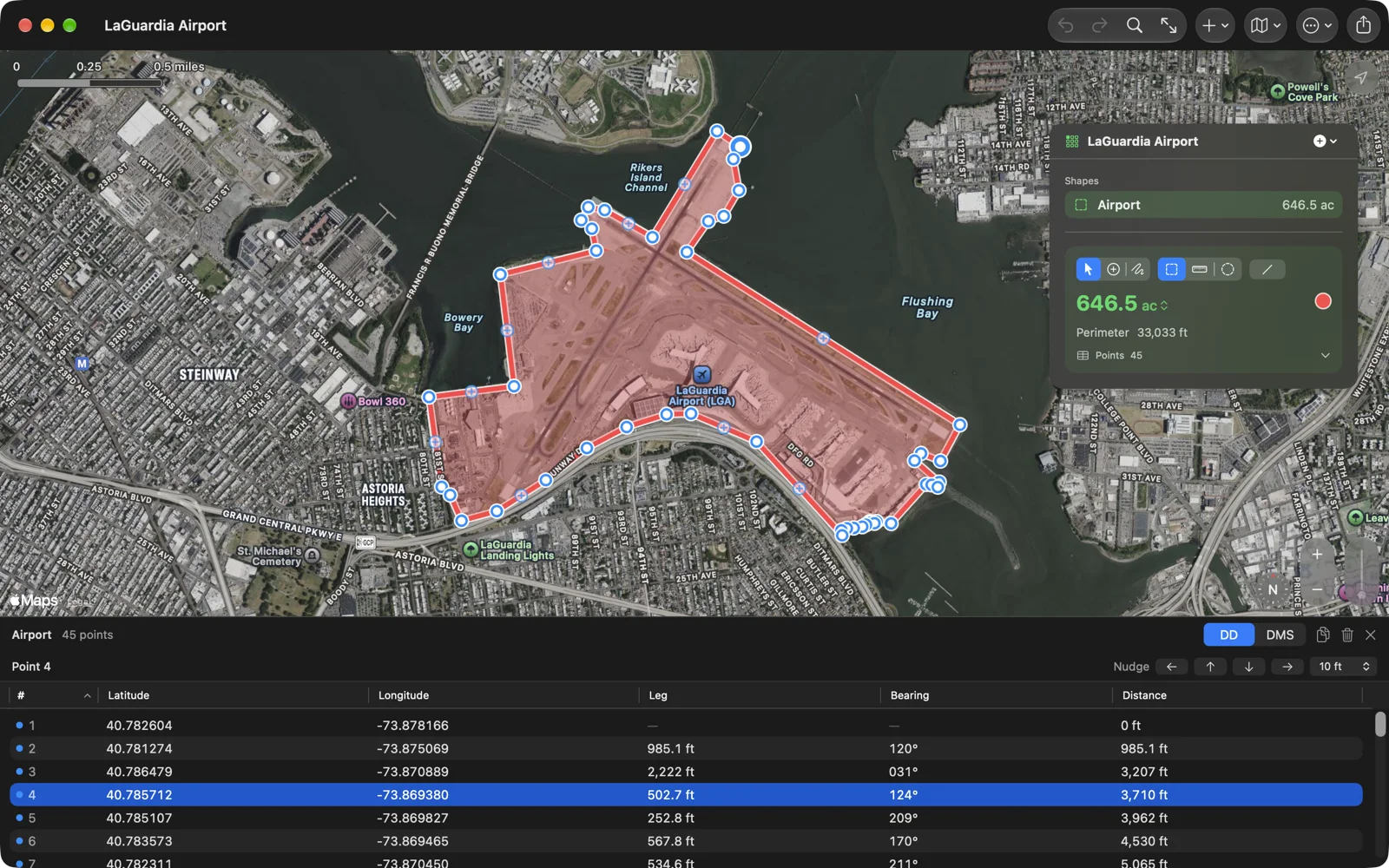
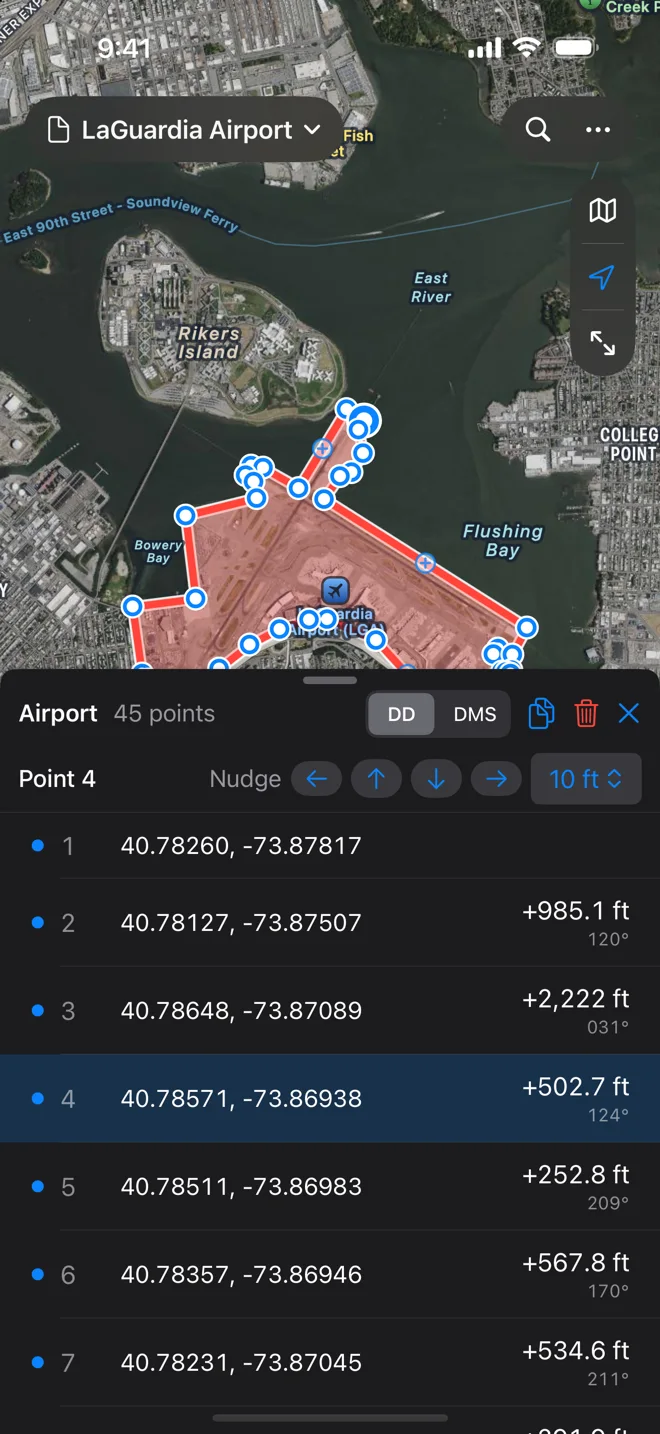
Every point of the selected shape is a row: its coordinates, the leg to it from the point before, that leg’s bearing, and the distance so far.
On iPad, Mac and Vision Pro
Section titled “On iPad, Mac and Vision Pro”Open the table with the Points row in the panel, or Measure › Show Points Table (⌥⌘P) on the Mac. It opens under the map; drag the line between them to resize it, and close it with its ✕.
The columns are #, Latitude, Longitude, Leg, Bearing and Distance; click a heading to sort. A blue dot marks a point you placed, a small grey dot a point along a route. The table and the map share one selection: pick a row and the map pans to the point; pick a pin and the table scrolls to its row.
The header holds:
- DD / DMS: decimal degrees, or degrees, minutes and seconds (the same choice as Settings › Numbers › Coordinates).
- Copy as CSV: copies the selected rows, or all of them, with columns point, latitude, longitude, tap (1 for a point you placed), leg_m, bearing_deg and distance_m.
- Delete: deletes the selected rows in one step.
Right-click a row (touch and hold on iPad) for Edit Point…, Show on Map, Copy as CSV and Delete.
Typing coordinates
Section titled “Typing coordinates”On the Mac, select a row, then click its latitude or longitude and type. Return keeps the value; ↑ and ↓ keep it and move to the next row, as in a spreadsheet. Cells take decimal degrees, so switch the header to DD first. On iPad and Vision Pro, Edit Point… opens a form with Latitude and Longitude; Save changes the point in one step.
Paste a whole coordinate into either field and the point moves there. Geo Measure reads most ways of writing one, such as 40.7829, -73.9654 or 40°46′58″ N 73°57′55″ W.
Nudging and deleting
Section titled “Nudging and deleting”With one row selected, a nudge bar appears: arrows for west, north, south and east and a step menu of 0.1, 1 or 10 m (1, 10 or 100 ft when the document’s distance unit is feet, yards or miles). Hold an arrow to repeat. On the Mac, ⌥ with an arrow key nudges too.
Select several rows (⌘-click or ⇧-click on the Mac) and choose Delete, or press Delete on the Mac, to remove them all in one step.
On iPhone
Section titled “On iPhone”Tap the point count on the card for a sheet of rows with the coordinates, the leg and its bearing; tap a row to select its point. Swipe left for Delete and Edit; touch and hold for Edit Point…, Show on Map and Copy Coordinates. The header and the nudge bar work as on the iPad.