

On iPhone, iPad and Vision Pro
On iPhone and iPad
Section titled “On iPhone and iPad”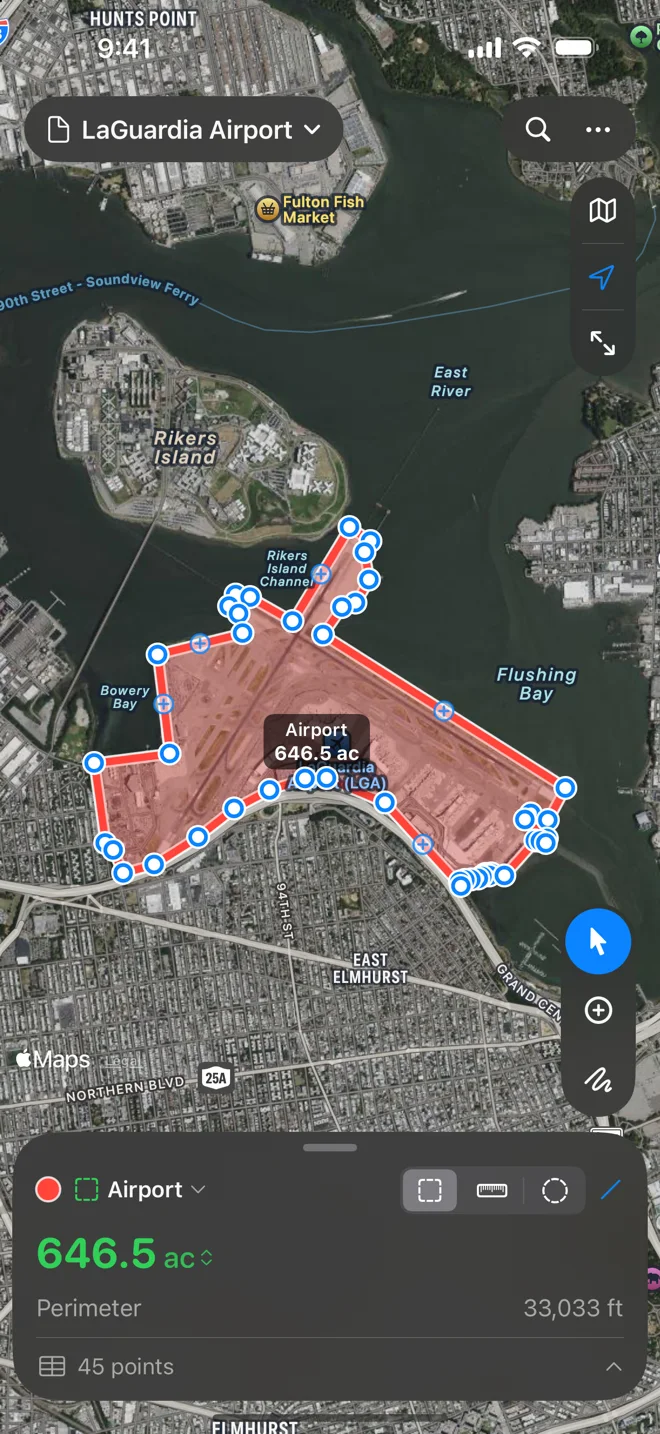
Gestures. In Add Points, tap the map to add a point. Pan with one finger, zoom and rotate with two. Press and drag a point to move it; tap it for its callout; tap a hollow midpoint to add a point on an edge. In Freehand, one finger or Apple Pencil draws instead of panning.
iPhone. At the top: the document’s name (its File menu), Undo and Redo while you draw or have something to undo, Search, the More menu (•••), and Done while drawing. More holds Share, Export, Import…, Print…, Rename…, Delete Point, Delete for the selected shape, Delete All…, Help and Settings. Down the right edge: map style, your location (tap to follow it) and Fit. The tools sit in a capsule above the card, where your thumb is. The card shows the shape’s colour, a shapes menu, the kind picker, the routing menu, the number and its unit, and the point count. Settings › Map › Glass draws the floating controls Automatic, Clear or Frosted.
iPad has the Mac’s layout: a toolbar (the File menu, Undo, Redo, Search, Fit, +, More, map style, Share, Settings), the floating panel, and the points table under the map. With a keyboard, the Mac’s shortcuts work. You can drop files from another app onto the map to import them.
On Apple Vision Pro
Section titled “On Apple Vision Pro”Geo Measure on Apple Vision Pro has the iPad layout: the map in a window, the toolbar, the floating panel and the points table. Look at a spot and pinch to add a point. Documents, routing, the points table, import and export work as on iPad.